How to export cases and scans in Unite
Formats
Exporting scans allows you to use exported scans with another software or to manually send it to the lab. Only post-processes or sent scans can be exported.
- DCM - internal 3Shape format of scans, which can be used in any 3Shape Software. Reflects real-life colors captured during TRIOS scanning. This format is available for both export and import.
- 3oxz - internal 3Shape format of the order/case which can be used in any 3Shape Software. It contains not only scans, but all the screenshots, printable order forms, and all the patient information. This format is available for both export and import.
- STL - format that can be used in any 3Shape software or any supporting 3rd-party software. The 3D model is not in color. The quality of the scan is the same as in DCM format. This format is available for both export and import.
- PLY - similar to STL format, this is a scan format that can be used in any supporting 3rd-party software. The 3D model is in adapted colors (not real-life). The quality of the scan is the same as in DCM format. This format is only available for export. To export scans in PLY format, you need to have an active TRIOS license on the dongle.
How to export DCM/STL/PLY scans from Unite
You can export DCM/STL/PLY scans from either the Patients or Cases tab in the Unite software.
From the Patients tab:
Step 1: Open Unite. Click on the Patients tab and click on the name of the patient.

Step 2: Click on on the 3 dots on the relevant case. In the expanded menu select Export, and then Scans.

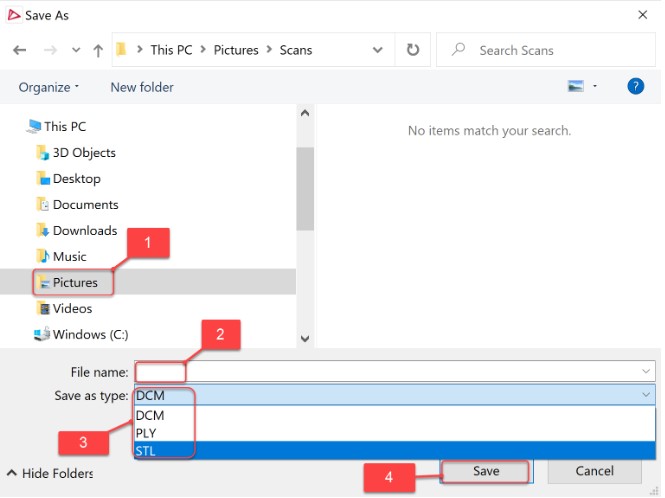
Step 3: Choose the location, name, and format (DCM/STL/PLY) for the file. Click Save.
From the Cases tab
Step 1: Open Unite. Click on the Cases tab, and click on the 3 dots menu on the relevant case. In the expanded menu select Export, and then Scans.

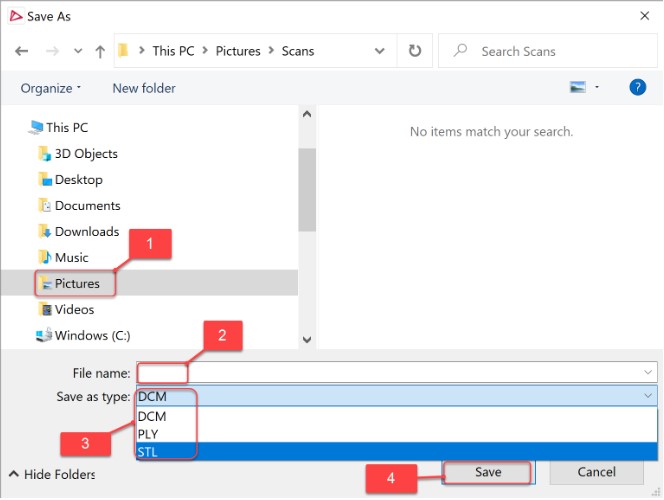
Step 2: Choose the location for saving > Name the file > Choose the format (DCM/STL/PLY) > Click Save.
How to export .3oxz scans from Unite
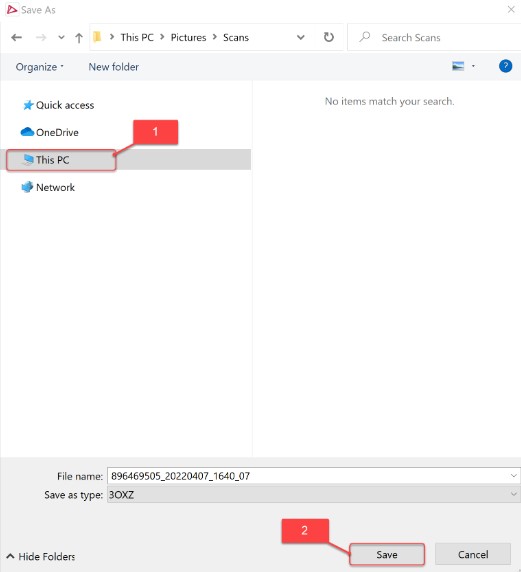
Step 1: To export scans in .3oxz format follow the same steps as above, but after selecting Export, select .3oxz. This applies to both Patients and Cases menus.

Step 2: Choose the location and name the file. Click Save.
Contact 3Shape Support if you have any further questions.